In S3 Media Maestro 4.0.0 and later, CloudFront is fully integrated, which makes it easy to set up.
Configure CloudFront Settings
-
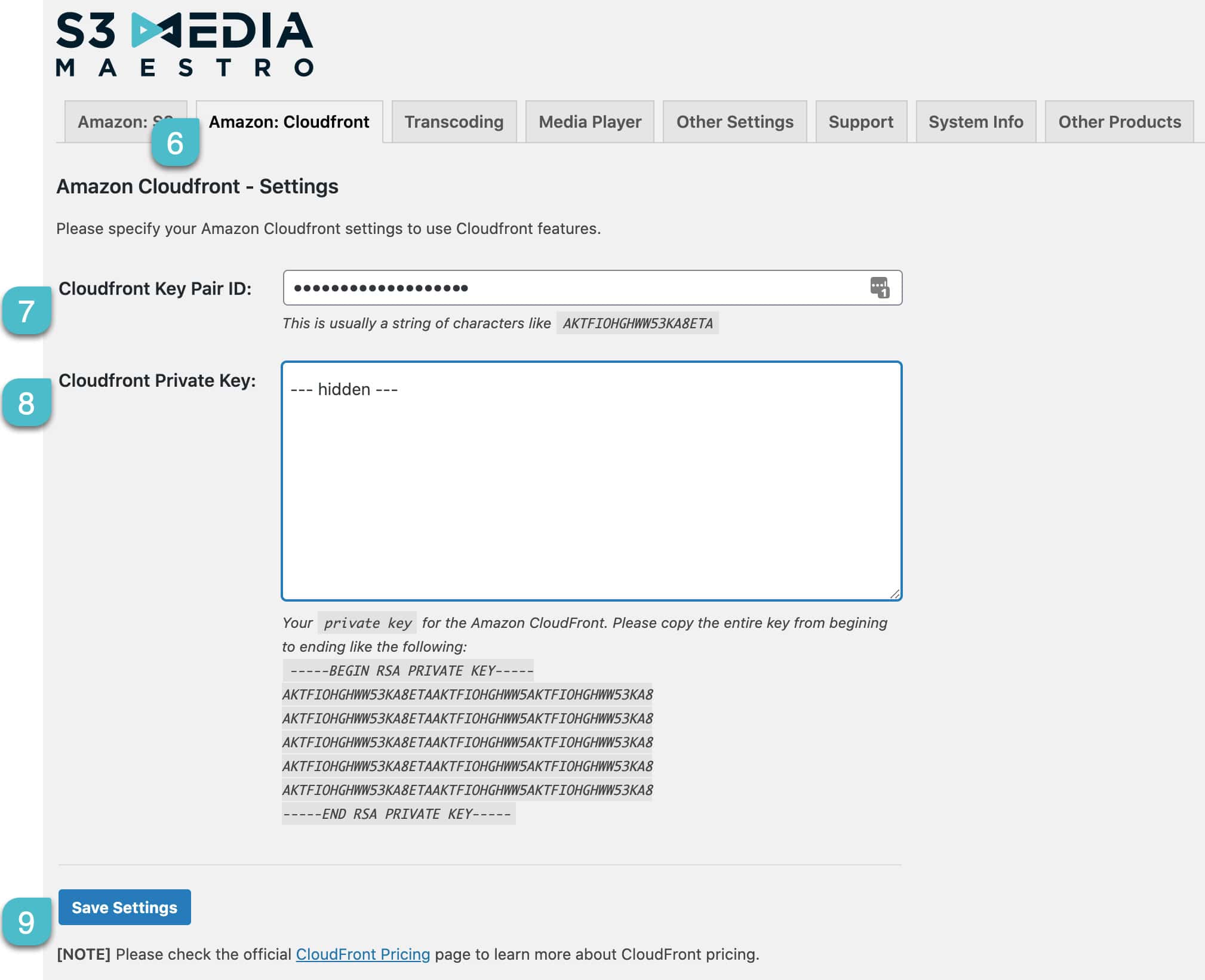
First get your CloudFront key pair ID and private key: see How do I get my CloudFront key pair ID and private key?
-
In WordPress, go to Settings→S3 Media Maestro, click the Amazon: Cloudfront tab, enter the key pair ID and private key, and click Save Settings.

-
Once you click Save Settings, the CloudFront distributions will begin to generate. It will take time to generate all distributions depending on how many buckets and how many objects are within the buckets.

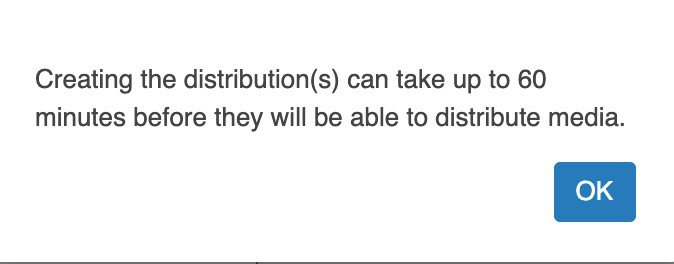
A CloudFront distribution is created for each S3 bucket. Going forward, if a bucket is created from the S3 Media Maestro Settings page, a CloudFront distribution will be created.
Setting up IAM user for CloudFront
If you use an IAM user’s access keys (the keys on the Amazon: S3 tab), that IAM user needs the CloudFrontFullAccess policy.
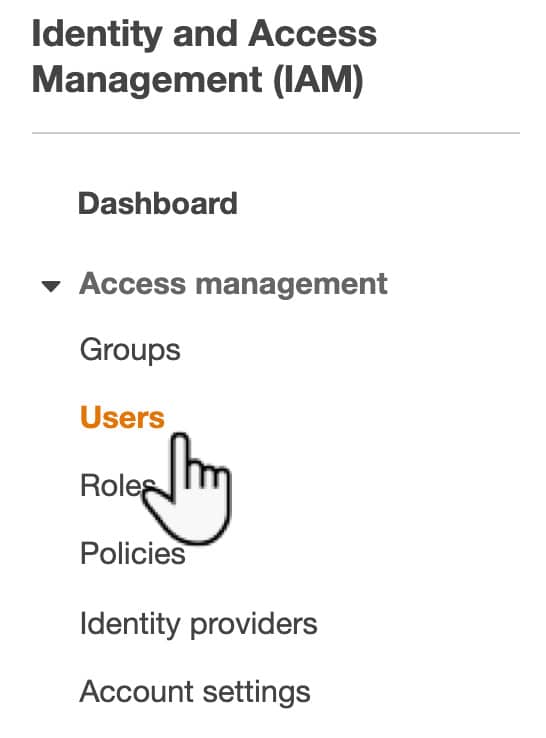
- In the AWS console, open IAM→Users and click the user.

- On the Permissions tab, click Add permissions.

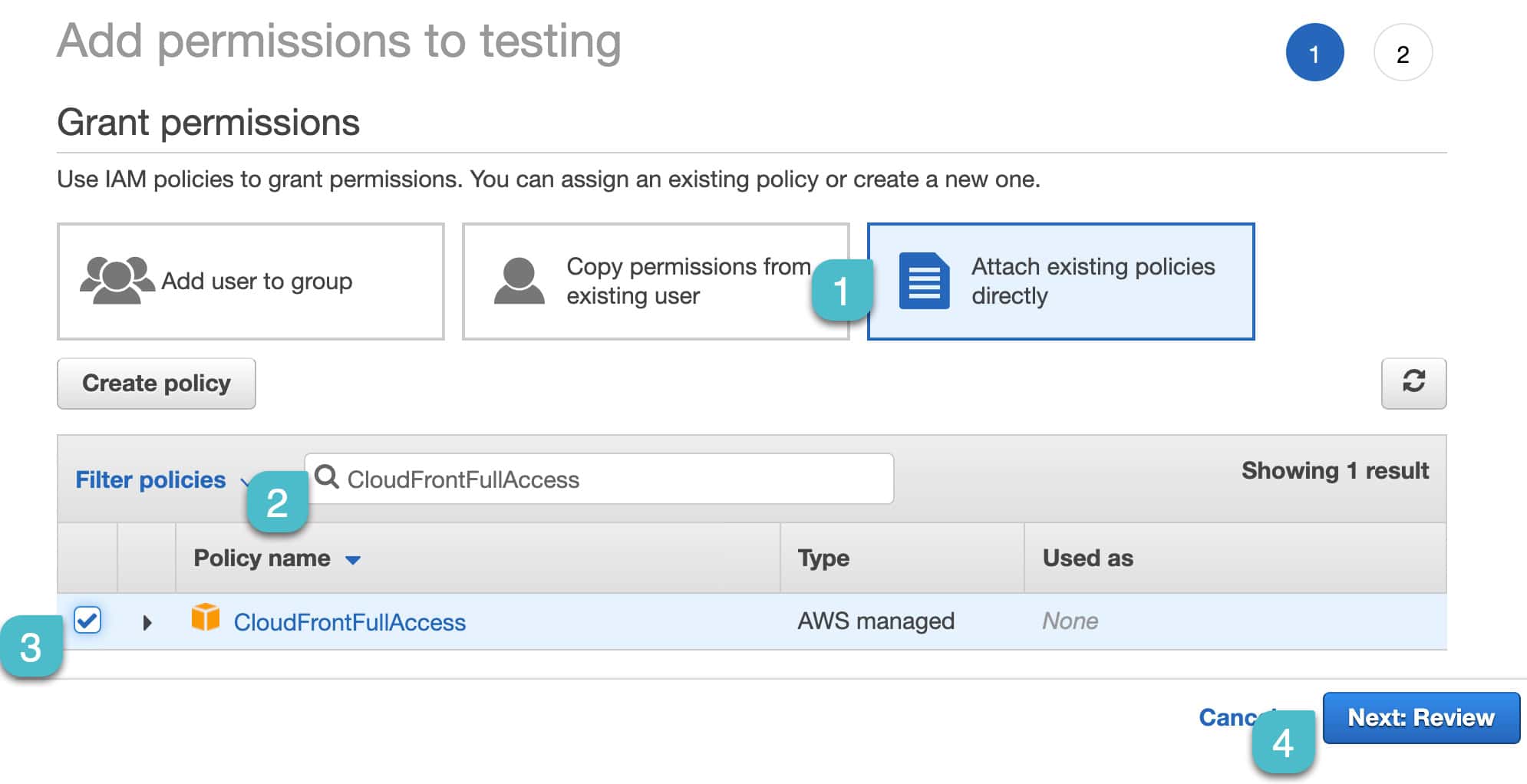
- Choose Attach policies directly, search for CloudFrontFullAccess, and tick it.

- Click Next, then Add permissions.