
Transcoding is simply the process of taking a video and re-encoding it into another format. S3 Media Maestro uses AWS Elemental MediaConvert to transcode videos into several resolutions. MediaConvert has separate fees from S3 and CloudFront. Please check the official MediaConvert Pricing page to learn more.
How to configure global transcoding options
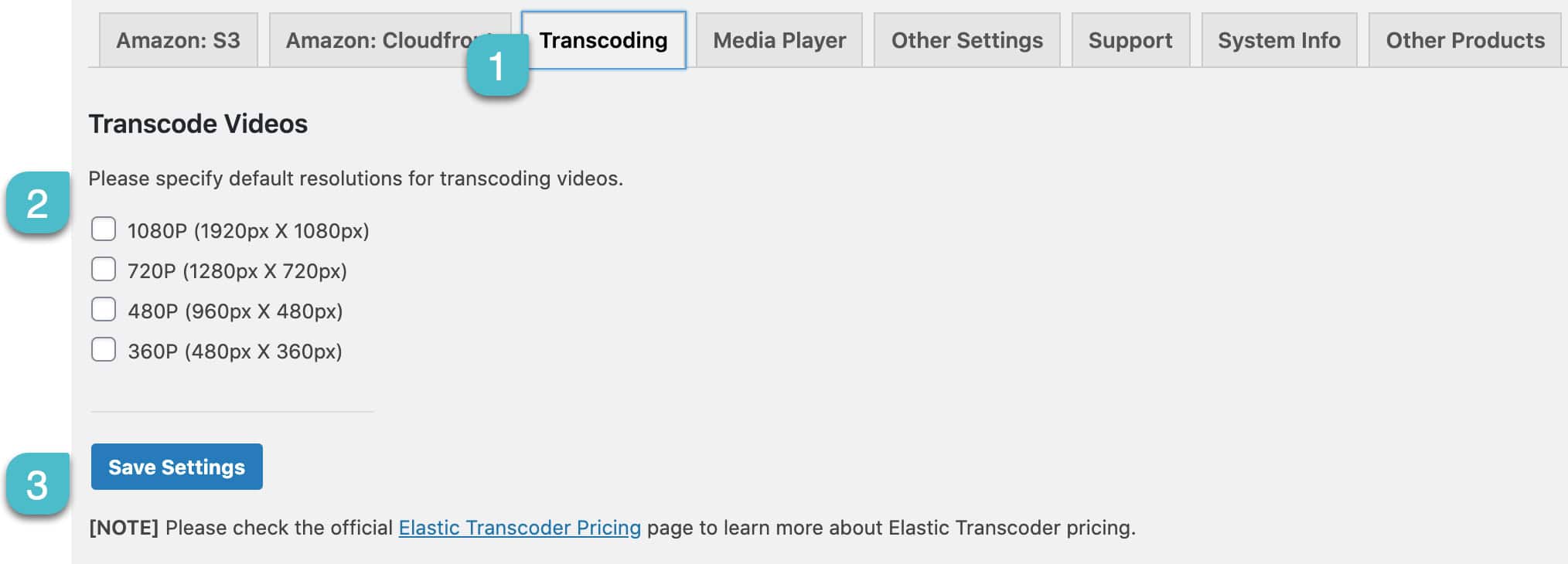
These are simply the global settings that will initially be set when using the shortcode builder.
- Click Settings→S3 Media Maestro and then select the Transcoding tab.
- Select the video resolutions desired: 1080p, 720p, 480p or 360p.
- Click Save Settings.
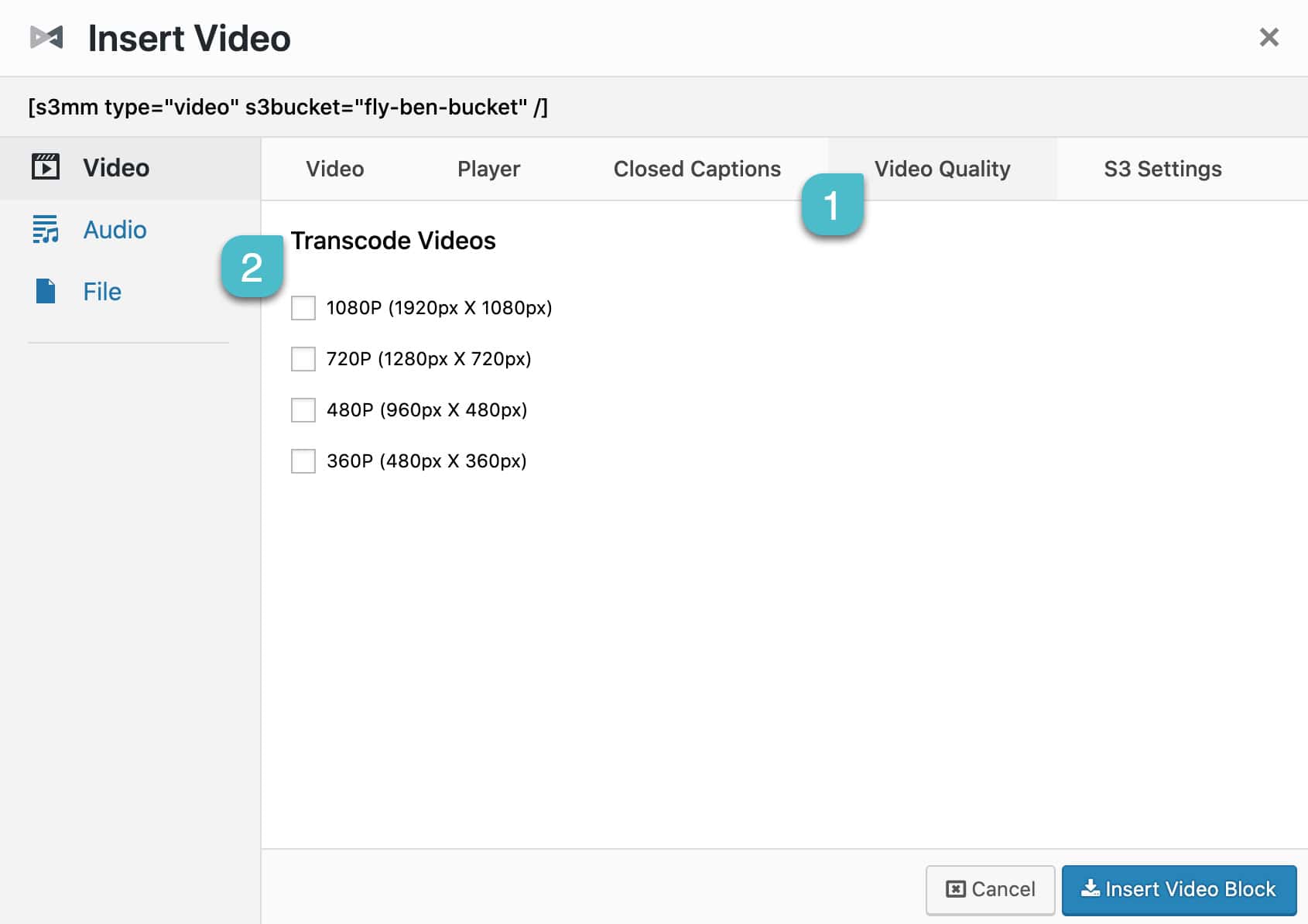
The shortcode builder allows you to specify resolutions per video as well.
- With the shortcode builder open, go to Transcode Videos / Video Quality.
- Select the video resolutions desired (the global transcoding options are selected by default).
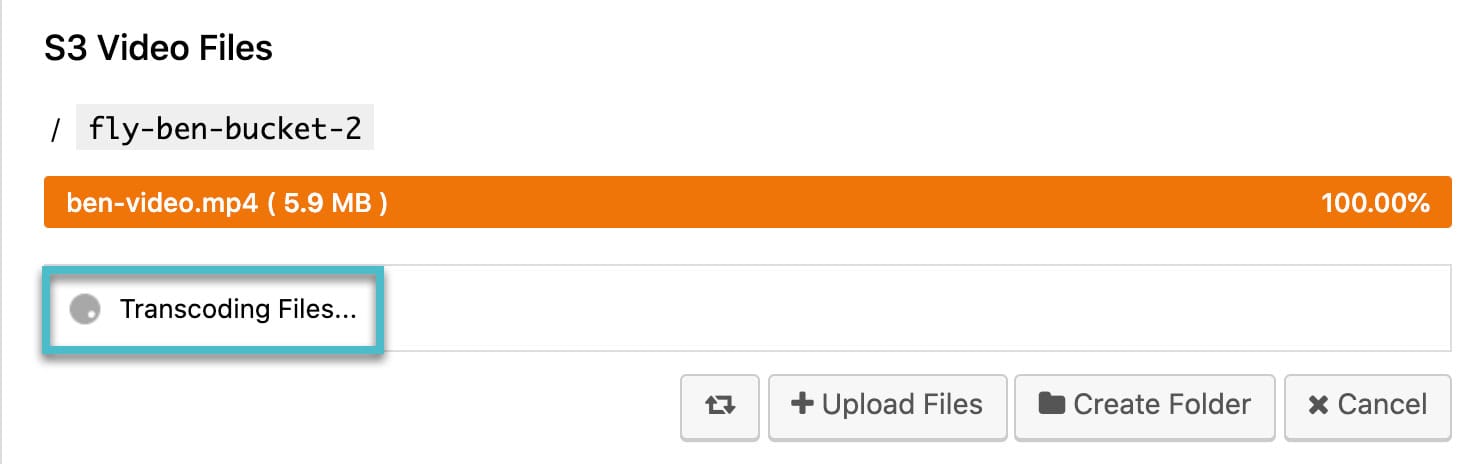
Once the desired resolutions are selected, simply upload a video. Once the video is uploaded, it will begin to transcode.
MediaConvert creates an MP4 file (H.264 video, AAC audio) for each resolution you selected. Each new file has the resolution added to its name.
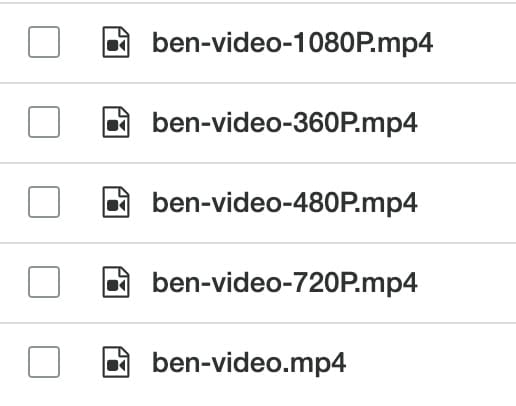
Please note, you will ONLY select the file that you initially uploaded. S3 Media Maestro knows which resolutions to display from what is selected under Video Quality. The video files with the resolution added to their names will not be selectable.
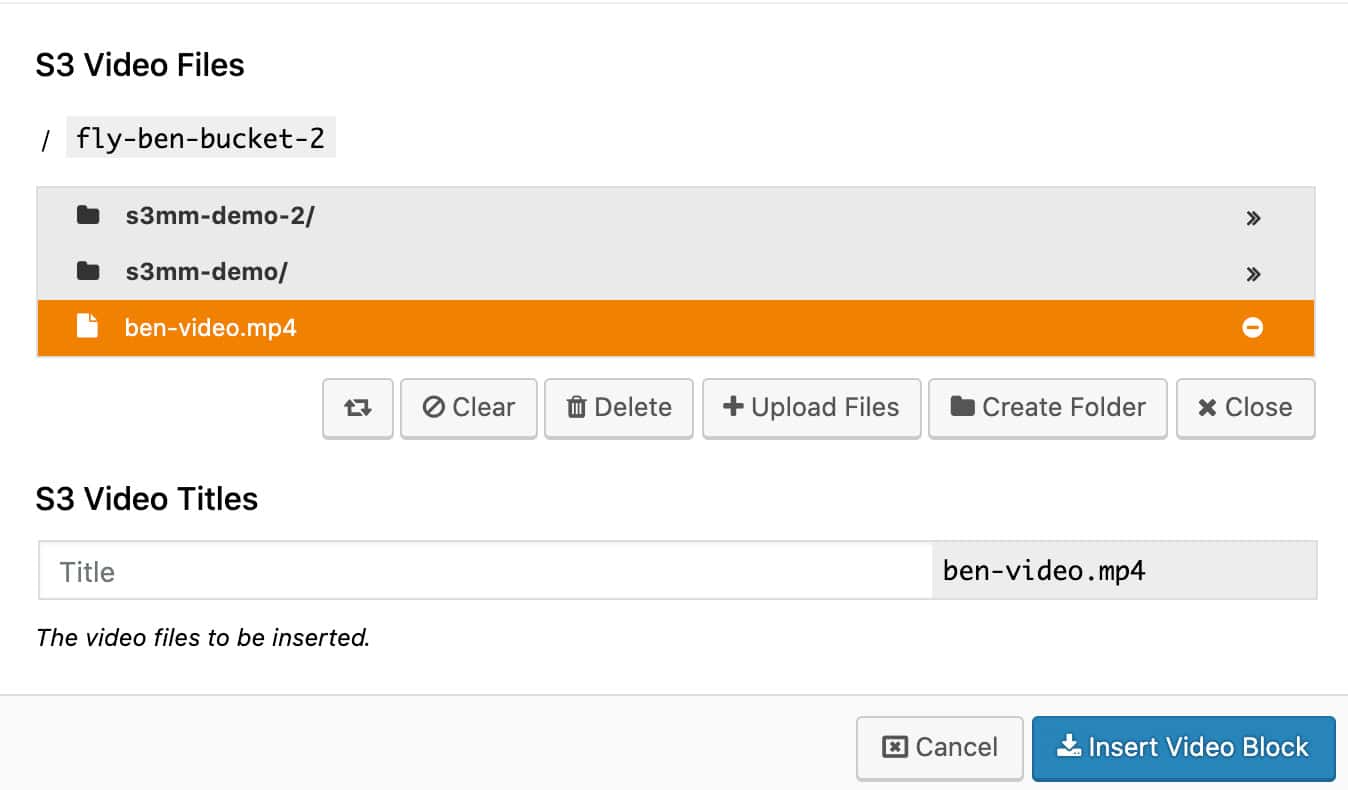
A couple things to keep in mind:
- You cannot transcode multiple videos upon upload
- You cannot use transcoded videos in a playlist
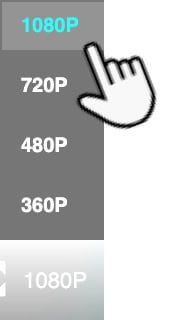
The video player will display the available resolutions.
Permissions
The first time you transcode a video, S3 Media Maestro creates the IAM role MediaConvert_Default_Role_s3mm for MediaConvert. The IAM user whose access keys are on the Amazon: S3 tab needs permission to do this. Add these actions to that user’s policy:
iam:GetRoleiam:CreateRoleiam:PutRolePolicyiam:PassRolemediaconvert:*