To configure Stripe, you will need a Stripe account. To enable and configure the Stripe payment gateway, perform the following steps:
- Click on WP Courseware→Settings
- Click the Checkout tab
- Click the Payment Gateways sub menu item
- Click on Stripe
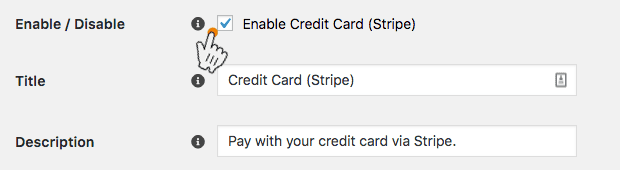
- First tick the Enable Stripe checkbox.
- The title will display on the checkout page. This is the label of the payment gateway, which helps to identify the payment method in case you have 2 gateways enabled. It’s a good idea to label it Credit card or Stripe.
- The description will show just below the title.
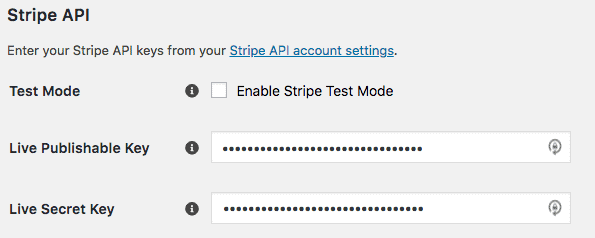
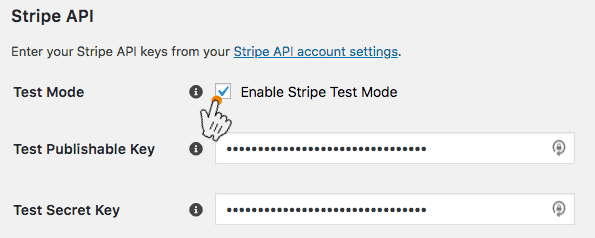
Next you will need to determine if you will be using Stripe in test mode or live mode. To use Stripe test mode, simply tick the box for Test Mode. If you are using Stripe test mode, you don’t need to have an SSL certificate on your site. However, once you disable Test Mode, you will be required to have an SSL certificate to complete transactions on your website.
API keys
- Log in to Stripe and open your API keys.
- Copy your Publishable key and Secret key into the Live Publishable Key and Live Secret Key fields.
- For test mode, open your test API keys and copy them into the Test Publishable Key and Test Secret Key fields.
Webhook
The webhook is required so that your site can receive notifications on charge statuses. To configure your webhook:
- Copy the webhook URL from the Stripe settings page in WP Courseware.

- In Stripe, open Webhooks (switch to test mode first if you’re using test mode) and add an endpoint.
- Paste the URL as the endpoint URL.
- Select these events:
charge.refunded,review.opened,review.closed,invoice.payment_succeeded,invoice.payment_failed,customer.subscription.updatedandcustomer.subscription.deleted. - Save the endpoint, then copy its Signing secret into the Live Webhook Secret field (or Test Webhook Secret in test mode) in WP Courseware.

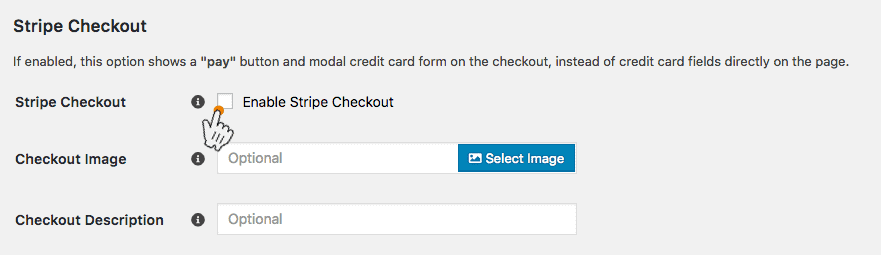
Stripe Checkout
The Stripe Checkout option replaces the on-page card form with a popup. We recommend leaving it unticked and using the default on-page card form.
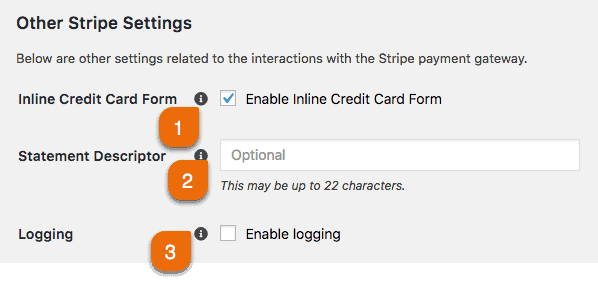
Other Stripe settings
- The inline credit card form displays a single text box where the student can enter the credit card number, expiration and CVC code. If this is not enabled, there are three separate input boxes.
- The statement descriptor will show up on the customer’s statement. The descriptor can be up to 22 characters long and will display in all caps.
- If you enable logging, you can log data returned from Stripe. You can view the logs by clicking on WP Courseware→Tools and then clicking the System Log tab.